A realistic, repeatable filing system for busy parents who still get paper
I used to struggle with paper clutter. While many people have moved fully digital, I’ve tried in the past, but I still find a lot of paper coming into the house. Therefore, I have adopted a hybrid system that actually works for my real life.
At the beginning of each new year, I like to set up my file folders and clear out the previous year’s files. The best part of this system is that it takes no more than 20 minutes from start to finish.
I like to have all the files ready when the new year starts, so every piece of paperwork has a home immediately and doesn’t pile up. This has been very helpful, as I used to have piles of unsorted paperwork scattered around the house.
I have tried several different systems – from overly simple to way too complex – and have narrowed my system into four easy, repeatable steps:
- Gather supplies
- Label Tax and Personal Folders
- Review Previous Year files
- Archive
Short on time? This 2-minute video shows exactly how I set up my paper filing system at the start of each year.
Gather Your Supplies
For a simplified system, you only need three basic items:
- Label maker and/or a pen
- File folders
- Expanding file folder
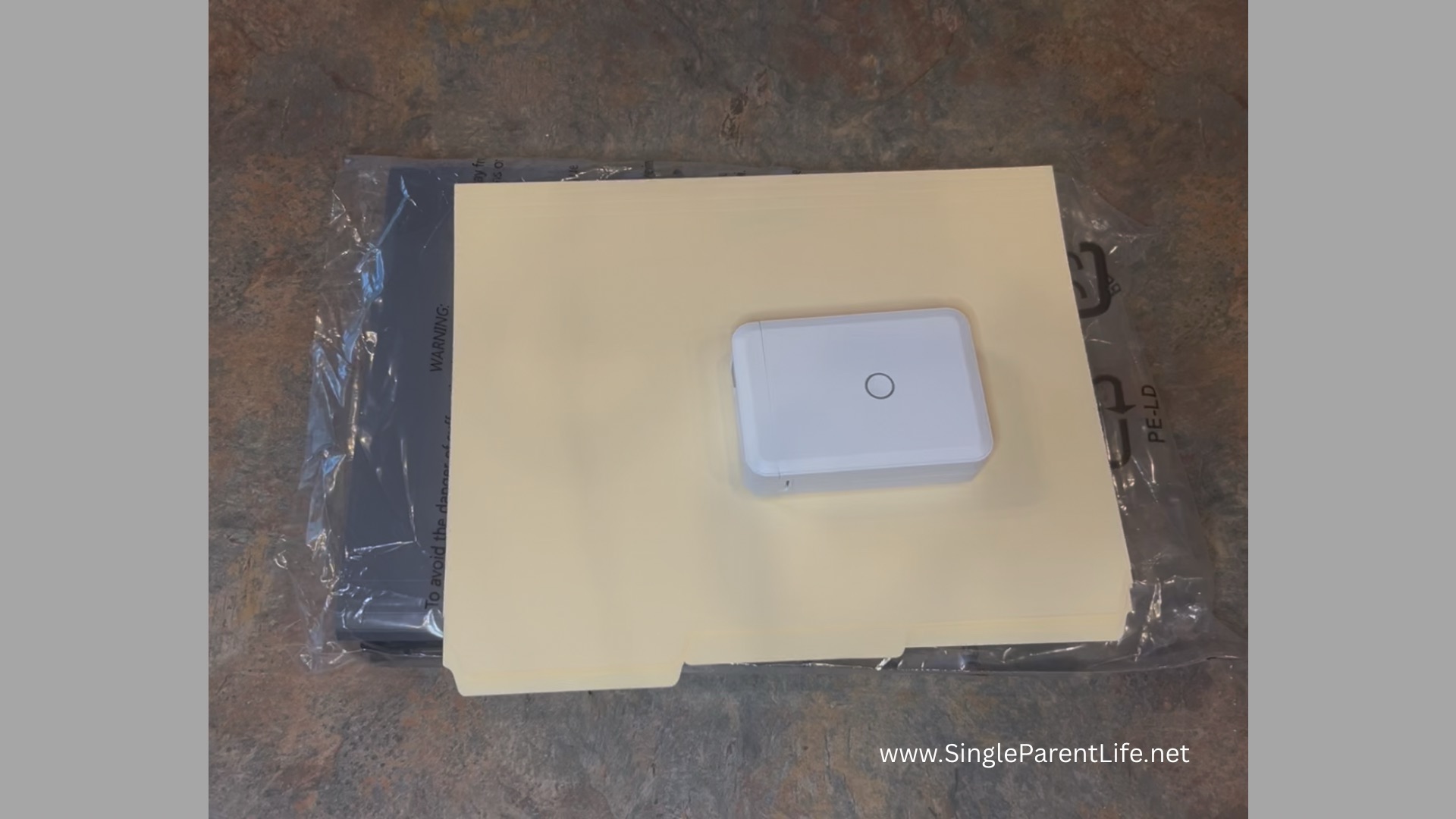
I really like the NIIMBOT label maker (Amazon.com: NIIMBOT Label Maker Machine Bluetooth Label Printer for School Home Office Organization, Wireless Mini Labeler D110 Upgraded Version, Label Machine with Label, Light Blue: Office Products) because it lets you save templates. Each year, I reuse the same labels instead of starting from scratch, saving time and speeding up the process.
I use the expanding file folder for tax paperwork. I like these since they have enough tabs for my tax categories: Amazon.com: Amazon Basics Expanding Organizer File Folder, Letter Size – Black & Gray, 2-Pack: Office Products.
Label Tax File Folder
Once you have gathered your supplies, it’s time to start labeling.
Collecting all tax documents used to be a struggle for me.
Using an expanding file folder has been the simplest way to stay organized throughout the year, rather than scrambling at tax time. This folder also serves as the tax record storage for the required seven-year retention period.
As a note, I also scan these documents and keep them electronically. I prefer physical copies when filing my taxes, but the digital backup gives me peace of mind in case my physical files are damaged. To keep it simple, my digital file system mirrors my physical one exactly.
You can customize your tabs to fit your tax categories. Here are the categories I currently use:
- Tax Documents
- Medical – Flexible Spending Account (FSA)
- Medical (Out-of-pocket costs)
- Vision (Out-of-pocket costs)
- Dental (Out-of-pocket costs)
- Rx (Out-of-pocket costs)
- Donations
- Paychecks
- Childcare Costs
- State Taxes
- Filed Forms
As I receive physical copies or electronic copies, I immediately add them to both my digital and physical file folders. This one habit prevents tax season overwhelm for me.
As I mentioned, I’ve struggled with paper clutter. A few years ago, I started Lisa Woodruff’s Sunday Basket System (Sunday Basket | Organize 365), and I now use a modified version alongside my Sterling Ink Common Planner (Sterling Ink). If you’re interested in learning more about how I combine these systems, leave a comment below, and I can share a detailed walkthrough.
Health Savings Account
I have a high-deductible health plan through my W-2 job and contribute the maximum to my Health Savings Account (HSA). I don’t currently use my HSA for medical expenses. Instead, I’m saving it for future use.
Because of the tax benefits of an HSA, I keep meticulous records of my out-of-pocket medical expenses so I can reimburse myself later if needed.
Each year, I set up a sinking fund in YNAB (You Need a Budget) to cover medical expenses throughout the year. This makes tax season reconciliation much easier. If I go over my YNAB sinking fund amount, I’ll either WAM (YNAB term, “Whack-a-Mole”) in my budget to cover the cost or use the funds in my FSA.
Last year, I overspent my sinking medical budget due to multiple bouts of the flu. I share my experience and what I learned in this post: Breaking Free: Starting My Journey to Financial Independence as a Single Parent and How You Can Too – Single Parent Life.
Note: I fund my FSA only up to the rollover limit (which changes yearly) to avoid forfeiting unused funds.
Label Personal Folders
After setting up my tax folder, I move on to my home management folders. These are the personal folders I create at the start of each year:
- One per child
- One for me
- One for retirement
- One for house, pets, vehicles
For me, that’s six folders total.
For my kids, I also have additional folders that I set up each school year:
- One per child
- One per IEP or 504 plan
The kids bring home a mountain of paperwork from school, and this system provides a temporary home for everything. I’ll share how I process and archive school paperwork when we transition into the 2026–2027 school year.
Review Previous Years’ Folders
When I remove the previous year’s folders, I constantly review them. Things can get hectic throughout the year, and I don’t always have time to sort as I go.
During this step, I toss anything I don’t need long-term and scan items that haven’t been digitized yet. This process has gotten faster over the years, and I’m finding I need fewer items to keep long-term, since most things are digitized today, such as product manuals.
For my kids’ folders, I use a dedicated records container for each child. I moved the prior years’ folders into these boxes. My goal is to keep everything contained in one box per child. When my kids are older, I’ll give it to them, and they can decide what to keep and what to throw away.
And You’re Done!
That’s it, you’re done setting up your 2026 filing system! You have a designated spot to collect your paperwork that’s easy to file, easy to find, and easy to review.
I hope you find these tips helpful. If you have your own paper-clutter strategies, share them in the comments. I’m always looking for new ideas.
Leave a Reply